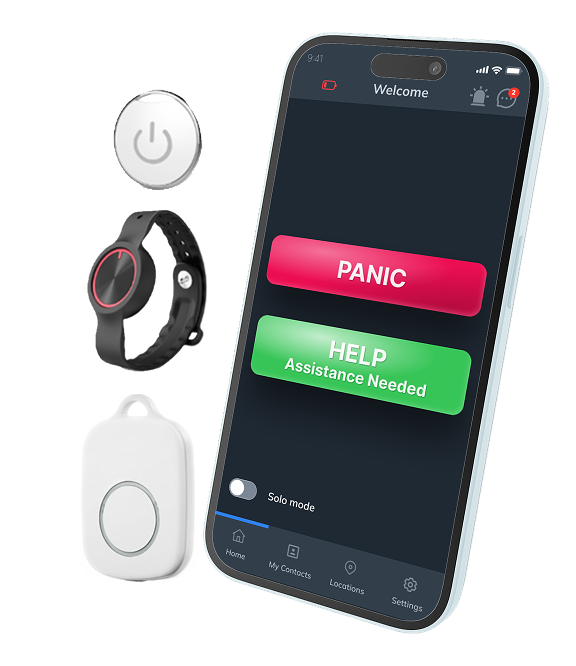
Your Soteria Shield wearable badge is designed to put help within reach when you need it. Before using your badge, you’ll need to download the Soteria Shield app and connect your wearable badge and panic button to your account.
Setup takes just a few minutes.
Download the Soteria Shield App
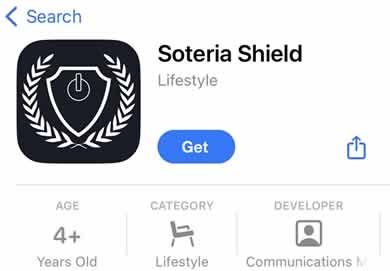
iPhone: Open the Apple App Store Android: Open the Google Play Store
Search for:
Soteria Shield
Select the Soteria Shield app from the search results.
What You'll Need
Before you begin, have the following ready:
Your Activation Code located in the email from your order
Your Soteria Shield Wearable BLE Panic Button
Your smartphone with the Soteria Shield App
Your Soteria Shield account email address and password
Important: Keep the QR code on the back of your wearable badge and panic button accessible. You’ll need to scan it during setup.
Step 1 — Install the App
Tap Get on iPhone or Install on Android to download the Soteria Shield app to your phone.
Once the installation is complete, open the Soteria Shield app.
Step 2 — Sign In to Your Account
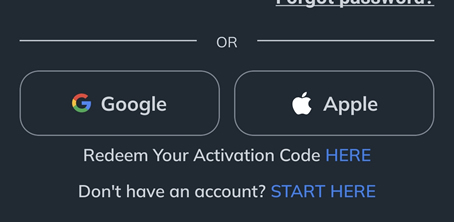
If you purchased your account on our website, press the “Redeem your activation code HERE” and enter your code that your recieved in the confirmation email.
If you didn’t receive your confirmation email:
Check your Junk email folder
or Call 800-352-2003
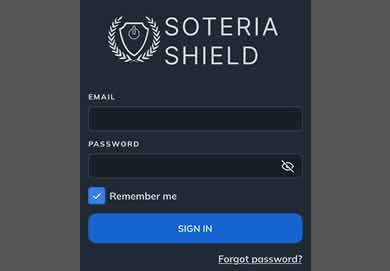
Enter the email address and password associated with your Soteria Shield account.
For convenience, check:
Remember Me
Then sign in to the app.
Step 3 — Open Badge Connection
Once you’ve signed in:
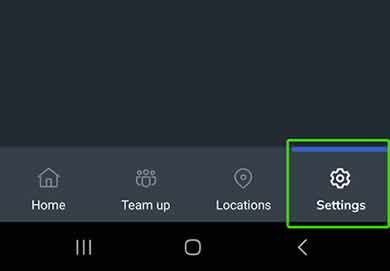
Tap the Settings tab at the bottom of the screen.
From Account Navigation, select Badge Connection.
This is where you’ll connect your Soteria Shield wearable badge and panic button.
Step 4 — Connect Your Badge
You’re now ready to connect your badge.
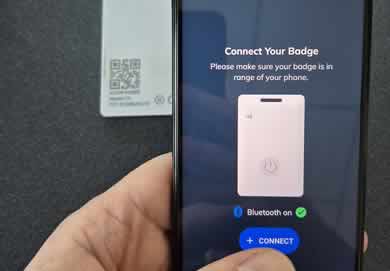
From the Badge Connection screen, tap:
+ Connect
This will begin the process of connecting your wearable BLE badge and panic button.
Step 5 — Scan the QR Code
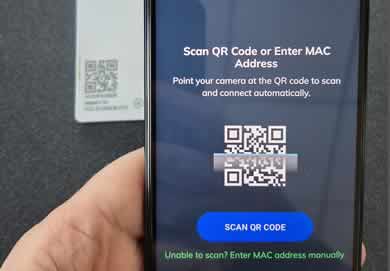
Tap the blue:
Scan QR Code
button.
Your phone’s camera will open.
Locate the QR code on the back of your Soteria Shield wearable badge or panic button and point your phone’s camera toward it.
The Soteria Shield app will automatically scan the QR code.
Having trouble scanning?
Make sure the QR code is clearly visible and positioned within your phone’s camera view.
Step 6 — Confirm Your Badge Is Connected
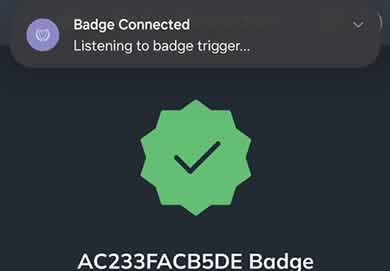
After the QR code has been scanned, the app should indicate that your badge is connected and ready to use.
You’re all set!
Your Soteria Shield wearable badge is now scanned and ready to use.
Step 7 — Test Your Soteria Shield Badge
Make sure your badge is ready when you need it.
After connecting your wearable badge, perform a test with the Soteria Shield dispatch center to confirm that your badge is working properly.
You can initiate a test in either of two ways:
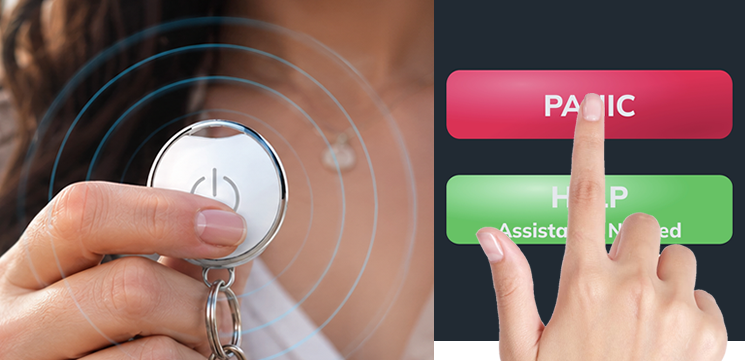
Option 1 — Test Your Wearable Badge
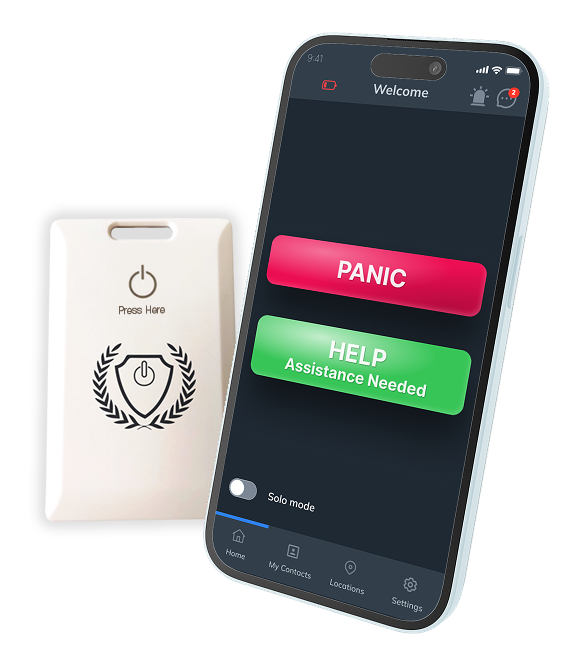
Press the wearable button twice.
Option 2 — Test From Your Phone
Open the Soteria Shield mobile app and press the red Panic Button.
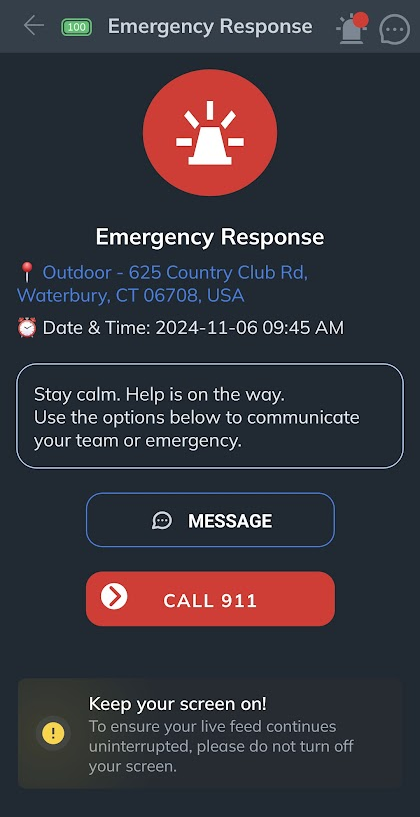
Either action will activate an incident with the Soteria Shield dispatch center.
🚨 IMPORTANT — THIS IS A LIVE DISPATCH TEST
When you activate the test, our dispatch center will call you and send you a text message.
You MUST answer the dispatcher’s call.
If you do not answer the call, dispatch may treat the activation as a real emergency and initiate emergency dispatch to your location.
When the dispatcher asks you to verify the incident:
1. Answer the phone. 2. State your full name exactly as it appears on your Soteria Shield account. 3. Clearly tell the dispatcher:
“This is a test of my Soteria Shield badge.”
This lets the dispatcher know that you are safe and that the activation was intentional.
🔴 IMPORTANT
Never activate a test and ignore the dispatcher’s call.
If you accidentally activate an alert, answer the call and tell the dispatcher immediately that it was accidental.
Your Soteria Shield Badge Is Ready
Keep your wearable badge with you so it’s available when you need it.
Wear it. Trust it. We’ve got you.
Need Help?
If you need assistance setting up your Soteria Shield wearable badge, please contact our support team.